
iCloud Photos to Video Slideshow
Turn your iCloud Photos albums into stunning cinematic video slideshows 🎬. With iCloud Photos to Video Slideshow, you can create professional slideshow videos directly from your browser — complete with smooth transitions, Ken Burns camera effects, and background music.
No software to install, no uploads to external servers. The extension opens as a sidebar panel, automatically scrolls through your iCloud Photos album to collect all images, and lets you customize every aspect of your slideshow before generating a downloadable video file.
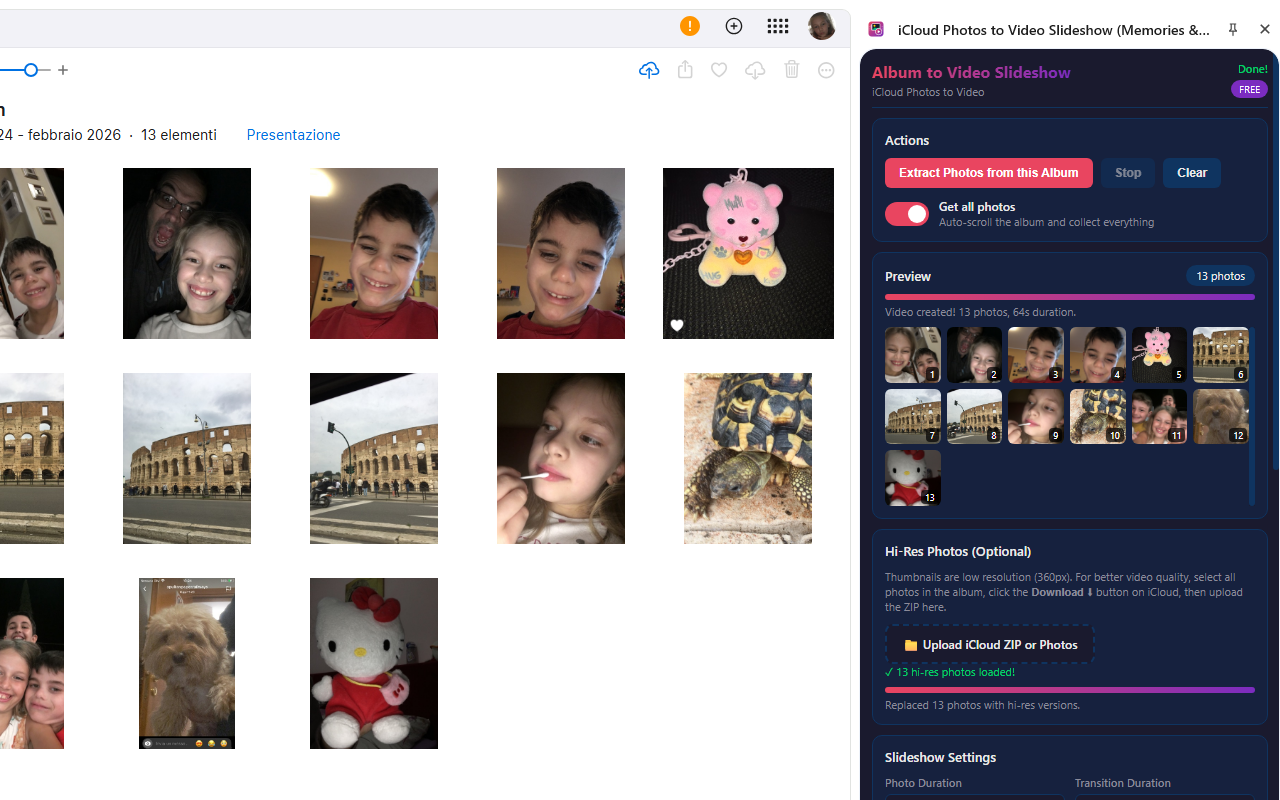
Smart Photo Extraction 📸 — The extension works directly on icloud.com, automatically detecting photos in your album's virtual grid. It captures each visible thumbnail using advanced canvas-based extraction that runs in the page's main JavaScript context, ensuring full compatibility with iCloud's web application architecture.
Hi-Res Photo Support 🖼️ — While auto-extracted thumbnails work great for quick previews, you can dramatically improve video quality by uploading the original photos. Simply select all photos in your iCloud album, click the Download button on iCloud, and upload the resulting ZIP file in the extension's "Hi-Res Photos" section. The extension uses JSZip to extract the images and automatically matches them to your album order — giving you full-resolution video output up to 4K.
Cinematic Effects 🎥 — Choose from 7 transition effects (fade, dissolve, slide in 4 directions, zoom) and multiple Ken Burns camera motions (zoom in/out, pan left/right/up/down, or combinations). Apply them individually, alternate between effects, or randomize for maximum variety. Adjust the intensity from subtle to dramatic.
Background Music 🎵 — Add royalty-free built-in music tracks or upload your own audio file (MP3, WAV, OGG). Adjust volume, enable looping for long slideshows, and enjoy an automatic fade-out at the end for a professional finish.
📋 How to Use
- Install the extension from the Chrome Web Store.
- Open any album on iCloud Photos (icloud.com/photos).
- Click the extension icon to open the sidebar panel.
- Click "Extract Photos from this Album" to start collecting images.
- Watch as photos are captured and previewed in the sidebar.
- (Optional — for best quality) Select all photos in iCloud, click the Download ⬇ button, then upload the ZIP in the "Hi-Res Photos" section of the extension.
- Customize slideshow settings: transitions, Ken Burns, duration, cover slide.
- Optionally add background music from built-in tracks or your own file.
- Click "Create Video Slideshow" to generate your video.
- Preview the result and click "Download Video" to save your .webm file.
📷 Screenshots

✨ Key Features
- Automatic Album Scrolling — Auto-scrolls through your entire iCloud album to collect all photos
- Hi-Res ZIP Upload — Upload the iCloud ZIP download for original-quality photos in your video
- Main World Canvas Extraction — Advanced technique that bypasses iCloud's CSP restrictions for reliable image capture
- 7 Transition Effects — Fade, dissolve, slide (left/right/up/down), zoom — or random mix
- Ken Burns Camera Effects — Zoom in/out, pan in all directions, combined motions, alternate, or random
- Background Music — Built-in royalty-free tracks or upload your own audio (MP3, WAV, OGG)
- Cover Slide — Add a title slide with custom text, subtitle, colors, and font size
- Resolution up to 4K — Choose 720p, 1080p, 2K, or 4K output resolution
- Frame Rate Control — 24fps (cinematic), 30fps (standard), or 60fps (smooth)
- Adjustable Bitrate — Low to Ultra quality presets (2.5–20 Mbps)
- Fit or Fill Frame — Contain photos within the frame or crop to fill for a cinematic look
- Automatic Fade-Out — Smooth audio and video fade-out at the end
- Select All or Checked Only — Extract every photo or only the ones you've selected
- Live Preview — See thumbnails appear in real time as photos are collected
- Photo Duration Control — 2 to 10 seconds per photo
- Transition Duration — 0.5 to 2 seconds between photos
- Background Color — Choose any color for letterboxing
- Supports JPEG, PNG, WebP, HEIC — Wide format support for uploaded hi-res images
🎯 Perfect For
- Creating family memory videos from vacation albums
- Birthday, wedding, and anniversary photo slideshows
- Sharing travel memories with friends and family
- Social media content from your photo collections
- Year-in-review highlight reels
- Memorial or tribute videos
- School projects and presentations
- Real estate photo tours
💡 Tips for Best Results
- Upload the hi-res ZIP — Auto-extracted thumbnails are ~360px; the iCloud ZIP download gives you the originals for much better video quality
- Organize your album first — arrange photos in the order you want them to appear in the video
- Use "Fill Frame" mode for a cinematic widescreen look (photos will be cropped to fill)
- Use "Random" transitions for more variety in longer slideshows
- Make sure you're logged in to iCloud before opening the album
- Don't interact with the page while the extension is extracting photos
- Try different Ken Burns combinations — "Alternate (All)" cycles through zoom and pan effects
- Use High or Ultra bitrate for the best visual quality when sharing on social media
- Convert WebM to MP4 with any free online converter if your device doesn't support WebM
🔓 Free & PRO Version
The FREE version includes all features with a small "Demo Watermark" on the generated video. Purchase a PRO unlock code to remove the watermark and create clean, professional videos. The PRO upgrade is a one-time purchase — no subscriptions, no recurring fees.
🔒 Privacy & Security
- Works entirely in your browser — no uploads to external servers
- Your photos and videos stay private on your computer
- No account required (beyond your iCloud login)
- No data collection, analytics, or tracking
With iCloud Photos to Video Slideshow, creating beautiful memory videos has never been easier. Whether it's a family vacation, a birthday party, or a year-in-review highlight reel, this extension gives you cinematic results with just a few clicks — right from your browser. 🎬
⬇️ Download from Chrome Web Store